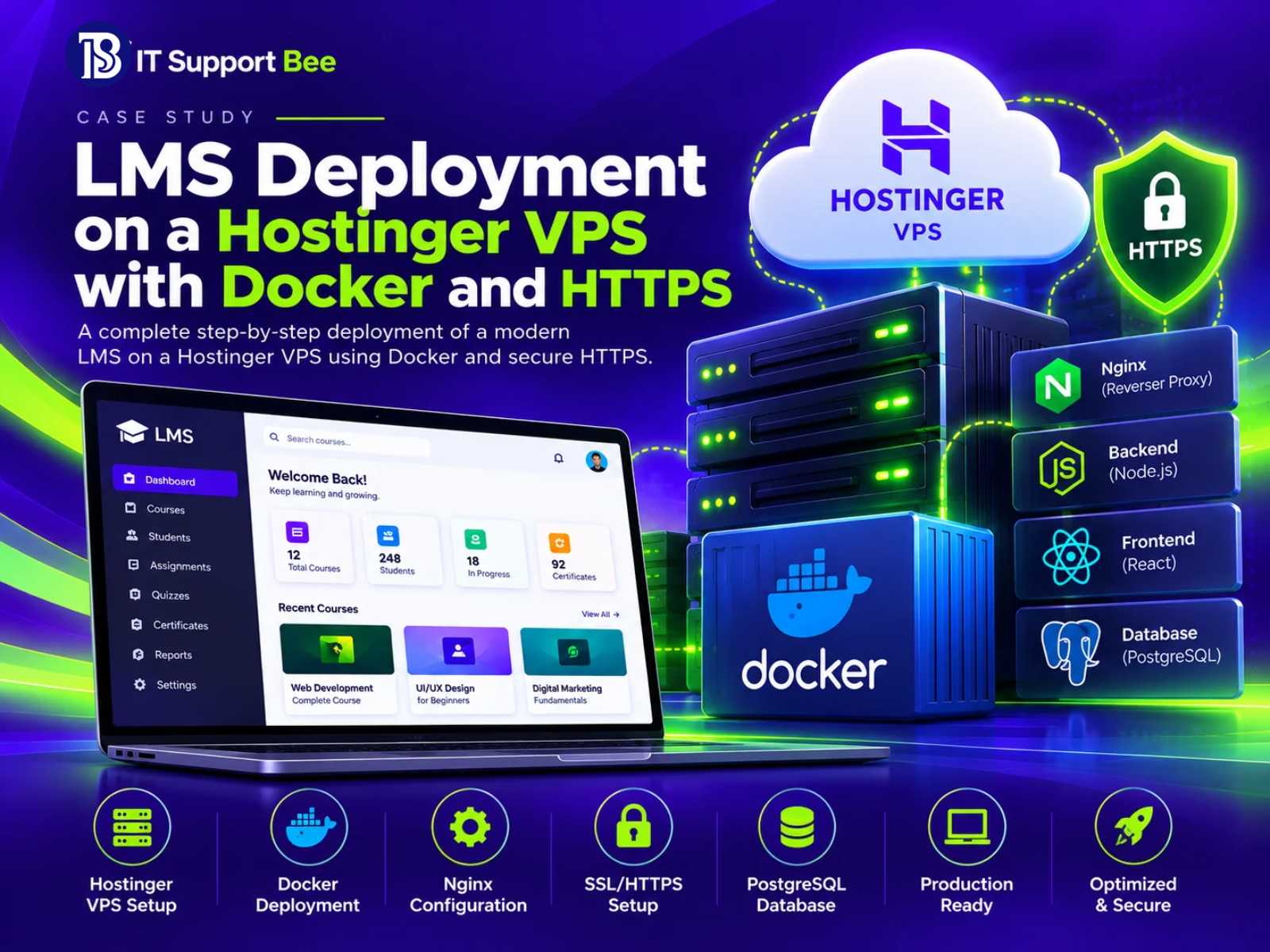
Deploying a learning management system (LMS) requires more than copying website files to a server. The frontend, backend API, database, persistent course uploads, and HTTPS configuration must work together. This case study documents a practical deployment of a React/Vite frontend and Node.js/Express backend to a Hostinger VPS running Ubuntu 26.04 LTS, using Docker Compose and PostgreSQL.
The project was uploaded directly to the VPS rather than pulled from GitHub, keeping the deployment workflow independent of a source-control integration.
Project Overview
The goal was to make the LMS available at example.com through a containerized application stack, with the frontend, backend API, and database separated into services and the website served securely over HTTPS. The example.com domain is used as a publication-safe placeholder in this case study.
Technology stack
- VPS: Hostinger
- Operating system: Ubuntu 26.04 LTS
- Containers: Docker and Docker Compose
- Frontend: React with Vite, served by Nginx
- Backend: Node.js and Express
- Database: PostgreSQL 16
- ORM and migrations: Prisma
- TLS certificate: Let’s Encrypt through Certbot
- Domain:
example.com
Application architecture
- The frontend container serves the built web application on port
80 and proxies
/api/requests to the backend service. - The backend container runs the Express API on port 5000 and connects to PostgreSQL over the private Docker network.
- The PostgreSQL container stores application data in a named Docker volume.
- A separate named volume is used for persistent SCORM and other uploaded content.
- The domain’s DNS A record points
example.comto the VPS public IP. AwwwCNAME points to the root domain.
The Challenge
A production deployment needed to solve several practical issues:
- Run the frontend, API, and database without relying on a web-based deployment dashboard.
- Keep the private application code on the VPS without requiring a GitHub connection.
- Ensure the backend can resolve PostgreSQL by its Docker service name.
- Run Prisma migrations and seed data during backend startup.
- Make the frontend’s Nginx configuration available inside the Docker image.
- Obtain a TLS certificate and configure the container to serve HTTPS.
The initial frontend build failed because web/.dockerignore excluded
nginx.conf. Docker therefore could not copy the file into the image,
even though the file existed on disk.
The Solution
1. Prepare the VPS
Docker and Docker Compose were installed on Ubuntu. The project files
were uploaded to /root/lms, with separate backend and web
directories.
The relevant project layout was:
/root/lms/
├── backend/
│   ├── Dockerfile
│   ├── entrypoint.sh
│   ├── package.json
│   └── prisma/
└── web/
    ├── Dockerfile
    ├── nginx.conf
    └── package.json
This approach allowed the application to be built directly on the server without connecting a GitHub repository.
2. Build the services with Docker Compose
A Docker Compose configuration defined three services:
postgres— PostgreSQL 16 with a persistent data volume and a health check.backend— the Node.js API, configured to connect to PostgreSQL using the internal hostnamepostgres.frontend— the production Vite build served by Nginx, published on the VPS’s HTTP port.
The backend was configured with environment variables for the database
connection, JWT authentication, and application URLs. Secrets were
stored in a server-side .env file rather than committed to source
code.
Security note: production secrets should be unique, strong, and kept out of public repositories, logs, and browser code. Only expose ports that need to be publicly reachable.
3. Correct the Docker build context
The frontend build failed with an error indicating that /nginx.conf
could not be found. The cause was an entry in web/.dockerignore:
nginx.confRemoving that entry allowed Docker to include the configuration file in the build context. The frontend and backend images then built successfully.
A related backend image detail was also reviewed: Prisma’s CLI was
listed under devDependencies, while the original dependency
installation used npm ci --omit=dev. The deployment build was adjusted
to install the dependencies required for Prisma generation. For a
hardened production image, the build can later be refined to generate
Prisma Client in a build stage and keep only production dependencies in
the final runtime image.
4. Verify database and backend startup
The Compose stack started with PostgreSQL reporting a healthy status. The backend entrypoint waited for PostgreSQL, ran:
npx prisma migrate deploy
node prisma/seed.js
node src/server.js
Backend logs confirmed that the database connection succeeded, scheduled jobs were registered, the worker started, and the API reported that it was running on port 5000.
Important production consideration: the seed script should be reviewed to confirm it is safe to run on every container restart. Demo accounts and default passwords should be disabled or changed before a public production launch.
5. Connect the domain
The domain’s DNS A record was configured to point to the VPS IP. A successful ping confirmed that the domain resolved to the expected IP, and an HTTP request returned the LMS application’s HTML.
DNS resolution alone does not prove that the application is healthy; checking the HTTP response and the content returned by the server helps verify that traffic reaches the intended frontend.
6. Obtain a Let’s Encrypt certificate
Certbot first issued a certificate for the root domain. When the www hostname was enabled, the browser reported a certificate name mismatch because the original certificate did not include that hostname. The certificate was expanded to cover both the root domain and www. The certificate and private key were saved at:
/etc/letsencrypt/live/example.com/fullchain.pem
/etc/letsencrypt/live/example.com/privkey.pem
The certificate issuance succeeded, but that does not automatically enable HTTPS in a Dockerized Nginx service. The container must have read-only access to the certificate files, Nginx must listen on port 443, and Docker must publish port 443.
The certificate files were mounted read-only into the frontend container. Nginx was configured to listen on port 443, serve the primary hostname, and redirect the www hostname to the primary hostname. The frontend container publishes ports 80 and 443. The redirect server block initially caused an Nginx startup failure because the main HTTPS server block was missing a closing brace. Numbered configuration output identified the missing brace; after correcting it, the frontend remained running. Nginx configuration validation passed.
Accessing and Operating the Backend
The backend is a Node.js/Express application running in the backend Docker Compose service. It listens on port 5000 inside the Compose network. The port was not published directly to the public internet; the frontend Nginx service forwards matching /api/ requests to http://backend:5000. This keeps direct access to the API port restricted while allowing the public website to communicate with it.
Inspect backend status
From the VPS, run:
cd /root/lms
docker compose ps
The backend should show as running, and PostgreSQL should report a healthy status.
Read application logs
cd /root/lms
docker compose logs --tail=100 backend
For live logs, use docker compose logs -f backend and press Ctrl+C to stop following them. Logs are useful for checking database connections, migrations, scheduled jobs, worker startup, and API startup errors. Avoid publishing logs that contain tokens, credentials, or personal information.
Open a shell inside the backend container
cd /root/lms
docker compose exec backend sh
Use exit to leave the container. Changes made manually inside a running container may disappear when it is recreated, so make persistent code changes in /root/lms/backend on the host and rebuild the service.
Test API routing
The public API is accessed through the website hostname and the configured API path, for example https://example.com/api/v1/ if that route exists in the application. The exact endpoint depends on the Express routes defined by the project; a 404 at the path root does not necessarily mean the backend is down. Test a known application endpoint or inspect the backend route definitions.
Do not expose port 5000 publicly unless there is a specific operational requirement and appropriate firewall and authentication controls. Keeping PostgreSQL port 5432 private is also recommended.
Deployment Issues and Resolutions
Frontend build could not find nginx.conf
The Docker build context excluded nginx.conf through web/.dockerignore. Removing that ignore rule allowed the COPY nginx.conf /etc/nginx/conf.d/default.conf instruction to succeed. This illustrates that a file can exist on the VPS but still be unavailable to Docker if .dockerignore excludes it.
SSL worked for the root domain but not www
The initial certificate covered only the root hostname. Visiting www triggered a certificate-name error. The solution was to request an expanded certificate covering both names, then add a dedicated Nginx HTTPS server block for www that returns a permanent 301 redirect to the primary hostname. DNS was configured with www as a CNAME to the root domain.
Nginx container entered a restart loop
After the redirect block was added, the frontend container repeatedly restarted with the error server directive is not allowed here. Numbered output from nl -ba /root/lms/web/nginx.conf revealed that the existing HTTPS server block was missing its closing brace before the new server block. Adding the missing brace restored a valid Nginx configuration. After rebuilding and recreating the frontend, docker compose ps showed the frontend running and curl confirmed the expected 301 and 200 responses.
Results
The following results were confirmed during deployment:
- Docker and Docker Compose were installed on Ubuntu 26.04 LTS.
- The frontend and backend Docker images built successfully after correcting the
.dockerignoreissue. - PostgreSQL started and reported healthy.
- Backend logs confirmed a successful database connection and API startup.
- The domain resolved to the VPS and returned the LMS frontend.
- Let’s Encrypt issued a certificate covering the root domain and
www. - The frontend container published ports 80 and 443 and remained running after the Nginx configuration was corrected.
curl -I https://www.example.comreturned301 Moved Permanentlywith aLocationheader pointing tohttps://example.com/.curl -I https://example.comreturned200 OK.- The backend remained inside the Docker network instead of exposing port 5000 publicly.
The HTTP status checks verified the primary HTTPS endpoint and the permanent www redirect. For a published case study, example.com is a placeholder; repeat these checks against the real domain when applying the procedure to another deployment.
Common Questions
Can I deploy without GitHub?
Yes. You can upload the project using SFTP and build it on the VPS. GitHub or another Git service is useful for repeatable deployments and version control, but it is not required for a manual Docker deployment.
Why use Docker Compose?
Docker Compose defines the frontend, backend, database, networking, environment variables, and persistent volumes in one configuration. It makes the deployment reproducible and lets services communicate by their Compose service names.
Why can the website load by IP but not over HTTPS?
HTTP and HTTPS use different ports: typically 80 and 443. A working HTTP site does not mean port 443 is published, allowed through the firewall, or configured in Nginx. The certificate must also be mounted into the container at the path referenced by the Nginx configuration.
Does a successful ping mean the website is working?
No. Ping tests network reachability and DNS resolution, not whether the web server, frontend, API, or TLS configuration works. Use HTTP checks, application logs, and an HTTPS request to test those layers.
How should uploads and database data persist?
Use named Docker volumes or carefully managed host volumes for PostgreSQL data and user-uploaded content. Rebuilding a container should not erase business data. Backups should be stored separately from the VPS and tested periodically.
Is the deployment production-ready as soon as the containers start?
Not necessarily. Before production use, verify HTTPS externally, secure all secrets, remove or change demo credentials, review seed behavior, configure backups and monitoring, check firewall rules, and test login, API, uploads, email, and payment integrations.
Recommended Production Checklist
- Confirm
https://example.comloads with a valid certificate. - Confirm HTTP redirects to HTTPS.
- Test authentication and the frontend-to-backend API connection.
- Change or remove all demo accounts and default passwords.
- Confirm Prisma seed logic is safe to run repeatedly.
- Configure backups for PostgreSQL and uploaded files.
- Test certificate renewal and keep ports 80 and 443 reachable.
- Keep database port 5432 private.
- Configure monitoring, log rotation, and security updates.
- Configure required email, storage, push notification, and payment integrations.
Conclusion
This deployment demonstrates how a React/Vite frontend, Node.js API, and PostgreSQL database can be hosted on a Hostinger VPS using Docker Compose without a deployment dashboard. The key lessons were to verify Docker build context, keep persistent data separate from containers, validate backend startup through logs, and treat certificate issuance and HTTPS activation as separate steps.
A reliable deployment is not just a running container. It is a tested system with secure access, persistent data, verified HTTPS, backups, and a clear recovery process.
Need Help Deploying or Securing Your Infrastructure?
IT Support Bee helps businesses deploy and maintain web applications, cloud services, DNS, SSL/TLS, and remote IT infrastructure.
- Email: hello@itsupportbee.com
- Contact: itsupportbee.com/contact
Book a strategy call to review your deployment, strengthen security, and plan a maintainable production setup.

Mushfiqur Rahman
Cloud Administrator & IT Support Engineer
Transforming messy infrastructures into streamlined, secure, and automated systems. Specializing in Google Workspace, Microsoft 365, and zero-downtime migrations.